
Your First Session
A ten-minute Claude Code walkthrough on a real Salesforce project.
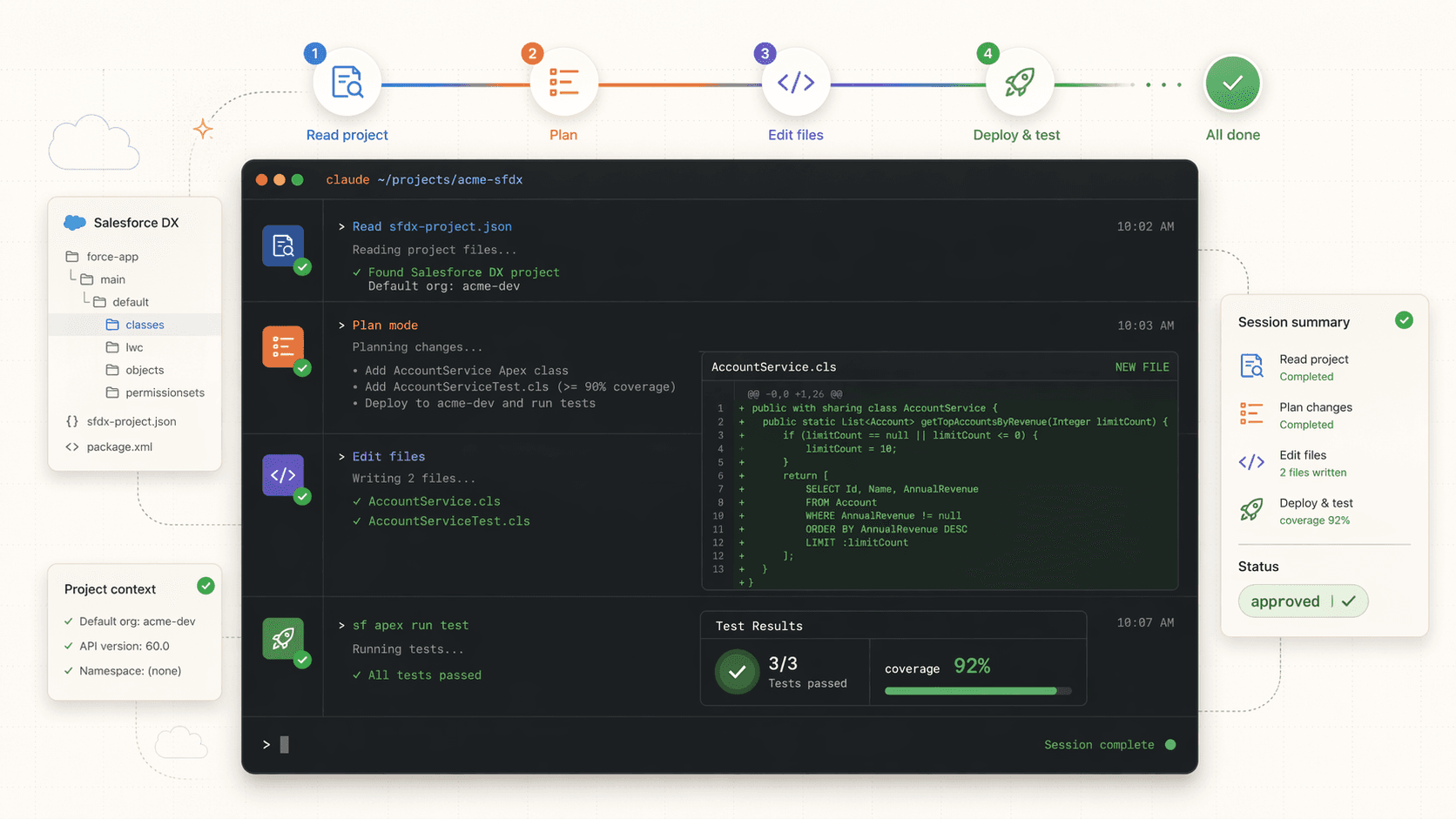
You've installed Claude Code and picked a terminal. Now do a real task on a Salesforce DX project. This walkthrough generates an Apex service class with a test and deploys it, so you see the full loop: read, plan, edit, approve, run.
You need a DX project
If you don't have one yet, go through Your First Project first. Any project with an authorized org works.
The ten-minute loop
Open your project
In your terminal, cd into the project folder and start Claude Code:
cd ~/Documents/my-awesome-project
claude
Claude Code starts in the current directory. It now has read access to every file at or below that path.
Orient the agent
Before asking it to write code, have it read the project. This grounds its answers in your actual layout:
"Read
sfdx-project.jsonandAGENTS.mdif it exists, then summarize what this project is and what the default target org is."
Claude Code will ask permission to read each file the first time. You'll see three choices:
- Allow once: approve this single read
- Allow always (for this session): approve this tool for the rest of the session
- Deny: block the read
For project files you trust, Allow always is fine. For anything touching the filesystem outside the project or the network, prefer Allow once and watch what it does.
Ask for a plan first
Don't jump straight to "write the code." Ask for a plan and read it. Cycle into Plan mode with Shift+Tab (Claude Code rotates through Auto, Plan, and Execute modes).
"Plan the work to add an
AccountServiceApex class with a methodgetTopAccountsByRevenue(Integer limitCount)that returns the top N accounts byAnnualRevenue. Include a matchingAccountServiceTestclass aiming for 90% coverage with positive, negative, and bulk cases. Follow the conventions inAGENTS.md."
Claude Code returns a plan: the files it will create, the approach, and any questions. Read the plan. If it's wrong, say so.
Approve the work
When the plan looks right, tell it to proceed:
"Looks good. Go."
Claude Code generates the files. It will ask for permission each time it writes, unless you've already granted "Allow always" for writes. You'll see a diff before each write. Scan it.
Read the diff
Agents are fast. Diffs stop you from shipping subtly wrong code. If a diff is long, ask: "Walk me through the AccountServiceTest class before I approve it."
Deploy with its help
Deploying is a shell command, which means Claude Code can run it for you if you let it:
"Deploy just the new
AccountServicefiles to my default org, then run the tests on those classes and show me coverage."
Claude Code will propose running sf project deploy start --source-dir ... and sf apex run test --class-names AccountServiceTest --code-coverage. Approve each. If a test fails, paste the error back into the conversation and ask it to fix it.
Commit and exit
Ask it to make a clean commit message:
"Stage the new files and commit with a clear message."
When you're done, exit the session:
/exitOr Ctrl+D. Claude Code doesn't leave background processes hanging.
Commands you'll use on day one
| Command | What it does |
|---|---|
/help | List every slash command and shortcut |
/clear | Wipe the conversation context. Useful when you're switching to an unrelated task |
/resume | Pick up a previous session by ID |
/plan | Toggle Plan mode (or use Shift+Tab to cycle modes) |
/init | Scaffold a CLAUDE.md in the current project |
/exit | End the session cleanly |
Ctrl+C | Interrupt the current agent turn without exiting |
Ctrl+D | Exit the session |
Plan vs Execute vs Auto
- Plan means Claude Code will think out loud and propose changes but won't run tools. Use when you want to review before any writes.
- Execute runs tools as soon as they're approved. Use for known, bounded tasks.
- Auto is the default. Claude Code decides per step.
When you're touching production-adjacent code, start in Plan.
Running it non-interactively
Once you're comfortable, Claude Code is also a one-shot CLI. This is where it starts to feel different from Cursor:
claude -p "Summarize the last 10 git commits and flag any that touched production metadata."Claude Code runs once, prints the answer, and exits. No interactive session.
sf apex run test --class-names AccountServiceTest --result-format json \
  | claude -p "Read this test result JSON. If any test failed, explain why in plain English."
Anything that fits on stdin becomes part of the prompt. Useful for log triage, sf output, and metadata diffs.
#!/usr/bin/env bash
set -euo pipefail

echo "Resetting scratch org and seeding demo data..."
sf org delete scratch --target-org demo --no-prompt || true
sf org create scratch -f config/project-scratch-def.json -a demo -d 7
sf project deploy start --target-org demo

claude -p "Read fixtures/demo-seed.md and run the import commands it lists against the 'demo' org."
This is the shape of a demo-reset script. The agent does the last mile that would be awkward to hand-code.
Cost and speed awareness
Agents cost money
Every turn in Claude Code hits the model. Long sessions with large files in context are more expensive than short, focused ones. Two habits keep costs sane:
/clearbetween unrelated tasks so context doesn't balloon.- Name specific files in your prompt (
read force-app/main/default/classes/AccountService.cls) instead of asking the agent to search.
Anthropic's Claude Code dashboard shows per-session token usage. Check it after your first week.
What you just learned
In ten minutes you exercised the full loop: orient, plan, write, deploy, commit, exit. That's the same loop you'll run 20 times a day once Claude Code becomes part of your muscle memory. Everything else in this section is about making that loop faster for Salesforce-specific work.
Next Steps
- Move into the advanced section: Subagents for focused workers that report back, and Agent Teams for parallel sessions that coordinate on their own.
- Reuse or build capability packs with Agent Skills.
- Give the agent live org access with MCP Setup.