
First Steps
Install Claude Code on your Mac and point it at a Salesforce project.
Claude Code is Anthropic's terminal-first coding agent. You run it from any folder, point it at your Salesforce project, and talk to it in plain English. Before that, you need a working dev environment and a terminal you're comfortable in.
Already set up for Cursor? You're most of the way there.
Claude Code and Cursor share the same foundation: Homebrew, Git, Node.js, the Salesforce CLI, and Agentforce DX. If those aren't installed yet, go through macOS Environment Setup first, then come back here.
Salesforce SEs: check the internal Slack canvas
There's an internal Salesforce canvas with the current SE-specific guidance (licensing, approved accounts, shared skills). Read it alongside this page: Claude Code for Salesforce SEs (Slack canvas). Requires Salesforce Slack access.
Prerequisites
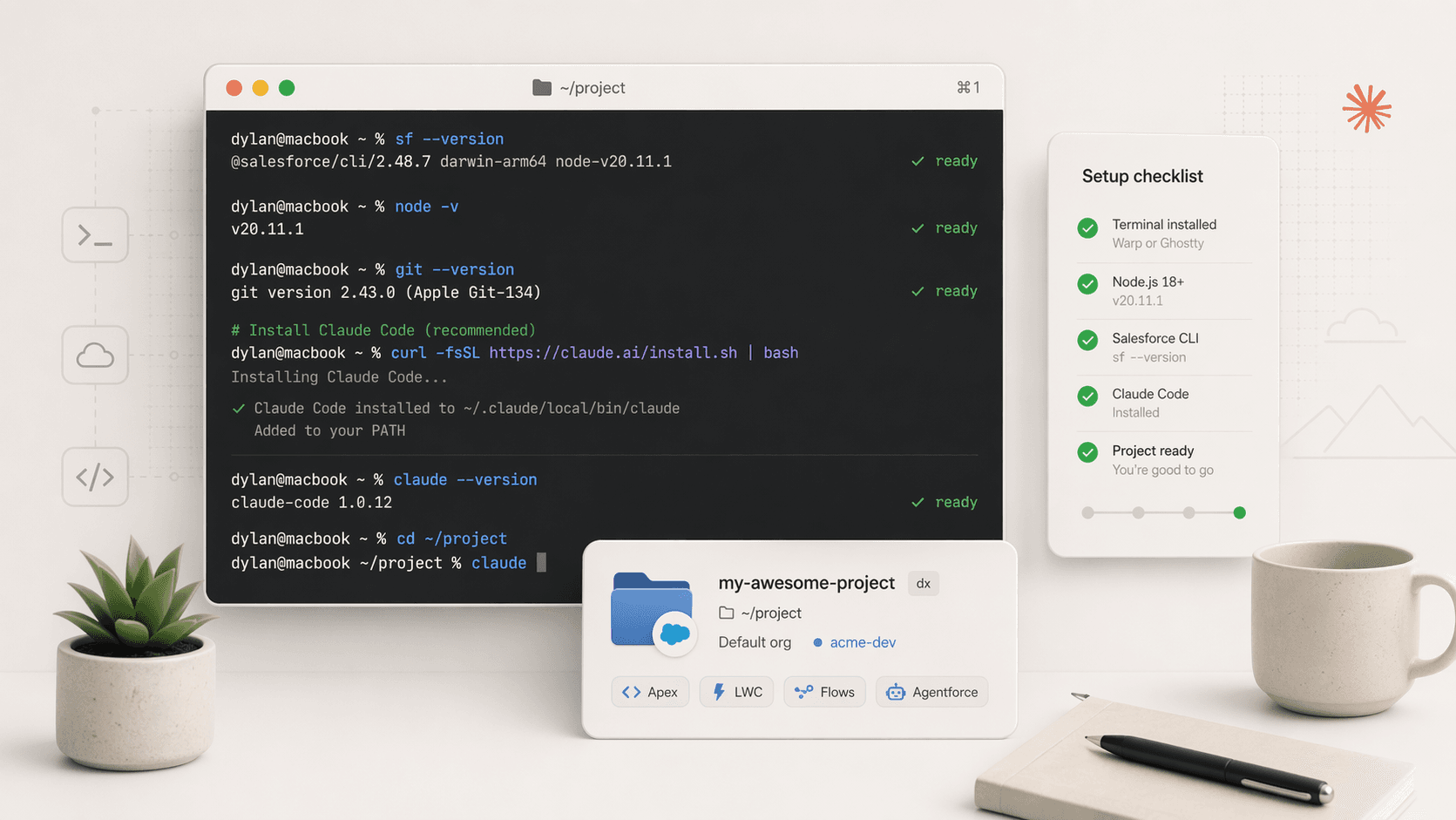
Run this in your terminal. If every command prints a version, you're ready to install Claude Code:
sf --version && node -v && git --versionIf any one of them errors, stop and finish macOS Environment Setup. Claude Code needs Node.js 18 or higher regardless of which install method you pick.
Pick a modern terminal
macOS Terminal works, but you'll spend real time in the CLI with Claude Code. Upgrade once and move on. Two good options:
Warp
Modern terminal with command blocks, built-in AI, and team features. Good if the CLI still feels unfamiliar.
Ghostty
Native, fast, minimal. Zero config. Good if you want a terminal that stays out of your way.
Use Homebrew:
brew install --cask warpOr download the installer from warp.dev.
Launch Warp and pick a theme. You can sign in for AI features or skip it and use Warp as a plain terminal.
Use Homebrew (you already have it from environment setup):
brew install --cask ghosttyOr download the .dmg directly from ghostty.org/download.
Launch Ghostty once from Applications so macOS trusts it. The defaults are fine.
Pick one and stick with it
Run every command on this page in the same terminal you just installed. Switching between Terminal.app, Ghostty, and Warp while debugging PATH issues is a bad time.
Install Claude Code
Run the native installer
Open your new terminal and paste:
curl -fsSL https://claude.ai/install.sh | bashThis is Anthropic's recommended install. It drops a self-updating binary into ~/.claude/local and adds it to your PATH. You won't have to reinstall when a new version ships.
Prefer Homebrew or npm? Two alternatives, in order of preference:
- Homebrew:
brew install --cask claude-code. You manage updates yourself withbrew upgrade claude-code. - npm:
npm install -g @anthropic-ai/claude-code. Ties the install to your Node version, fine if you're already in Node land.
All three produce the same claude command. If you don't have a reason to prefer one, use the native installer.
Reload your shell
The installer appends to your shell profile. Either close and reopen the terminal window, or run:
source ~/.zshrcThen confirm:
claude --versionYou should see a version number. If you get command not found, close the terminal completely, open a fresh window, and try again.
Point it at a Salesforce project and sign in
cd into any Salesforce DX project, then start Claude Code. If you followed Your First Project, use that one:
cd ~/Documents/my-awesome-project
claude
The first time you run claude, a browser tab opens. Sign in with your Anthropic account. Claude Code stores the token locally and won't ask again unless you log out.
Use the right account
If your team has an Anthropic billing account (see the Salesforce SE Slack canvas for the current account guidance), sign in with that instead of your personal Claude.ai account. Usage bills to whichever account you authenticate with.
Once you're signed in, try a first prompt:
"Read
sfdx-project.jsonand tell me what package directories this project has."
Claude Code will ask for permission the first time it wants to read a file. Approve it. You're now running an agent inside your project.
Verify the install
Paste this into your terminal. All four should print a version:
claude --version && sf --version && node -v && git --versionClaude Code is ready
Your terminal, Claude Code, and the Salesforce CLI all work together. The rest of this section builds on this setup.
Troubleshooting
The installer edited ~/.zshrc, but your current shell session hasn't reloaded it. Do one of these:
- Close and reopen the terminal window.
- Run
source ~/.zshrc. - Confirm the path is exported:
echo $PATH | grep claude.
If the PATH line is missing, re-run the install script.
If claude hangs on the login step:
- Copy the login URL the CLI prints and open it manually in your browser.
- Check that your default browser isn't blocked by an enterprise policy.
- On a locked-down corporate network, try a personal hotspot for the auth step only.
If you used npm install -g and hit EACCES:
- Do not use
sudo. - Switch to the native installer:
curl -fsSL https://claude.ai/install.sh | bash. It installs to~/.claude/localand avoids system directories.
Next Steps
- Understand how Claude Code and Cursor differ in Cursor vs Claude Code.
- Set up project-level config and skills in Configuring for Salesforce.
- Do the hands-on loop in Your First Session.
- Wire Claude Code to your org with MCP Setup. Claude Code reads the same
.mcp.jsonCursor does.