
Adding Skills to Cursor
A step-by-step tutorial for installing and configuring AI agent skills in Cursor
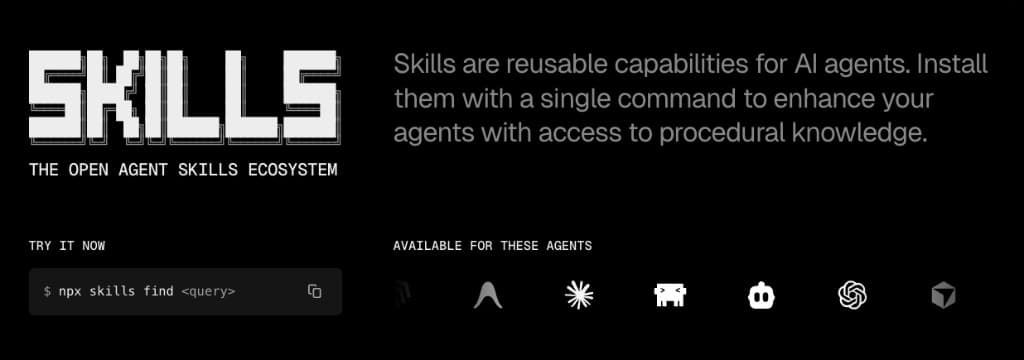
This guide walks you through the process of adding skills to Cursor so your AI agent can leverage deep Salesforce expertise while you work.
Time Required
Setting up skills takes about 5-10 minutes, depending on which installation method you choose.
Prerequisites
Before you begin, make sure you have:
- Cursor installed and running
- Node.js 18+ installed (check with
node -v) - A basic understanding of what skills are
How Cursor Discovers Skills
Cursor discovers skills from two locations:
.cursor/skills/                # Project-level (version-controlled with your repo)
|-- team-apex-standards/
|   +-- SKILL.md
+-- ...

~/.cursor/skills/              # User-level (applies across all projects)
|-- sf-apex/
|   +-- SKILL.md
+-- ...- Project-level (
.cursor/skills/): lives inside your repository, version-controlled, and shared with your team automatically. - User-level (
~/.cursor/skills/): personal skills that apply across all your projects.
When you send a message, the agent reads the description field from each discovered skill's frontmatter and decides which ones are relevant to your request. You can also invoke a skill manually using the / slash command menu in chat.
To see all your installed skills, open Cursor Settings (Cmd+Shift+J on Mac, Ctrl+Shift+J on Windows) and navigate to Rules. Your skills appear in the Agent Decides section.
Installation Methods
There are two ways to add skills to Cursor:
The npx skills CLI is the easiest way to install skills from the community. It handles downloading, placing files in the right directory, and keeping things up to date.
Install Skills from a Repository
Run the following command in your terminal to install skills from any compatible repository:
npx skills add <github-user>/<repo-name>For example, to install Jag's Salesforce Skills:
npx skills add Jaganpro/sf-skillsThis downloads all available skills and places them in the correct directory for your AI coding tool (Cursor, Claude Code, etc.).
Install a Single Skill
If you only need a specific skill, use the --skill flag:
npx skills add Jaganpro/sf-skills --skill sf-apexThis is useful if you want to keep things lightweight or only work with a specific part of the platform.
Preview Available Skills
Not sure what's in a repository? List the available skills first:
npx skills add Jaganpro/sf-skills --listThis shows you every skill in the repository along with a brief description.
Restart Cursor
After installing skills, close and reopen Cursor completely to pick up the new skill files.
Quick Verification
After restarting, open Cursor Settings (Cmd+Shift+J) and go to Rules. Your newly installed skills should appear in the Agent Decides section. You can also open any .cls file and ask Cursor to review it. If the AI references scoring rubrics or specific best-practice patterns, your skills are loaded and working.
If you prefer to manage skills yourself, you can create them manually.
Create the Skills Directory
For user-level skills (available across all projects):
mkdir -p ~/.cursor/skillsOr for project-level skills (shared with your team via version control):
mkdir -p .cursor/skillsAdd a Skill Folder
Each skill lives in its own folder with a SKILL.md file. The folder name must use lowercase letters, numbers, and hyphens only:
mkdir -p ~/.cursor/skills/my-custom-skillWrite the SKILL.md File
Create a SKILL.md file inside your skill folder. The frontmatter must include name (matching the folder name) and description (this is how the agent decides when to use it):
---
name: my-custom-skill
description: Custom Apex development guidelines for my team. Use when writing, reviewing, or fixing Apex classes, triggers, and test classes.
---

# My Custom Apex Skill

## Rules
- Always use the Trigger Actions Framework for triggers
- Bulkify all operations; never use SOQL or DML inside loops
- Minimum 85% code coverage for all classes
- Use custom metadata types instead of hardcoded values

## Naming Conventions
- Trigger handlers: `{Object}TriggerHandler.cls`
- Service classes: `{Object}Service.cls`
- Test classes: `{Object}Test.cls`
The Description Matters
The description field is critical. It's how the agent decides whether your skill is relevant to a given request. Be specific about when the skill should be used.
Restart Cursor
Close and reopen Cursor to load your new skill. Verify it appears in Cursor Settings > Rules > Agent Decides.
Keeping Skills Up to Date
Skills are actively maintained by the community. To check for and apply updates:
npx skills check
npx skills update
Auto-Updates
The npx skills CLI checks the source repository for newer versions. Running update pulls the latest skill definitions without affecting your own customizations.
Creating Your Own Skills
You can create custom skills for your team's specific patterns and conventions. A well-written skill includes:
- A clear description: specific enough that the agent knows exactly when to use it
- Actionable rules: specific, testable guidelines (not vague advice)
- Scoring rubrics: optional but powerful; give the AI a way to self-evaluate its output
- Examples: show what good output looks like
Here's a more complete example for a team-specific Apex skill:
---
name: acme-apex
description: ACME Corp Apex development standards. Use when writing, reviewing, or debugging Apex classes, triggers, batch jobs, and test classes in this project.
---

# ACME Corp Apex Standards

## Trigger Framework
- Use Trigger Actions Framework (TAF) for all triggers
- One trigger per object, no logic in the trigger file
- Handler methods must be bulkified

## Error Handling
- Use custom exception classes: `AcmeException`, `AcmeValidationException`
- Log errors to `Error_Log__c` custom object
- Never swallow exceptions silently

## Testing Requirements
- Minimum 90% code coverage
- Test positive, negative, and bulk scenarios (200+ records)
- Use TestDataFactory for all test data creation
- Assert specific field values, not just record counts

## Scoring (50 points)
- Architecture (15): Proper separation of concerns, no logic in triggers
- Bulkification (10): Collections used, no SOQL/DML in loops
- Error Handling (10): Custom exceptions, proper logging
- Testing (10): Coverage, bulk tests, meaningful assertions
- Naming (5): Follows ACME naming conventions
Share with Your Team
Put your custom skills in .cursor/skills/ inside your repository. Everyone who clones the repo gets the same standards automatically. For personal cross-project skills, use ~/.cursor/skills/ instead.
Combining Skills with Rules
Skills and rules work together but serve different purposes:
- Skills are for dynamic, procedural "how-to" knowledge. The agent loads them when they're relevant to the current task.
- Rules (
.cursorrulesor.cursor/rules/) are always-on, declarative conventions that apply to every conversation.
A common pattern:
# .cursorrules
When working in this project:
- This is a Sales Cloud implementation for ACME Corp
- Default org alias: acme-dev
- Always use the Salesforce MCP for org operations
- Follow the permission set model (no profiles)
- All custom objects use the ACME__ namespace prefix
The AI combines both sources of context. The skill tells it how to write good Apex, and the rules tell it where to deploy and what conventions this specific project follows.
Troubleshooting
If your skills don't seem to be affecting the AI's output:
- Check Cursor Settings: open Settings (Cmd+Shift+J) and go to Rules. Your skills should appear in the Agent Decides section. If they don't, the directory structure may be wrong.
- Verify the directory: check that
~/.cursor/skills/or.cursor/skills/exists and contains your skill folders - Check the file name: the file must be named exactly
SKILL.md(case-sensitive) - Check the description: if the
descriptionfield is vague, the agent may not recognize when to use the skill. Be explicit about what tasks the skill covers. - Restart Cursor: skills are discovered at startup, so changes require a full restart
If an unrelated skill is activating:
- Refine the description: make your skill's
descriptionfield more specific about when it should and shouldn't be used - Remove unused skills: if you installed a full library but only need a few, remove the rest to reduce noise
- Use slash commands: if the wrong skill keeps getting picked, invoke the correct one directly via
/skill-name
If two skills give contradictory advice:
- Narrow descriptions: make each skill's description clearly scoped so the agent picks the right one
- Remove overlap: if two skills cover the same area, consolidate into one
- Customize: edit the skill's
SKILL.mdto resolve the conflict for your team's conventions
Next Steps
Ready to install a production-grade Salesforce skill library? Head over to the next guide:
- Using Jag's SF Skills: install 33 Salesforce skills covering Apex, Flow, LWC, SOQL, Agentforce, Data 360, and more