
LWC Local Dev & Live Preview
Iterate on Lightning Web Components without deploying. The save-reload-see-it loop that saves hours of demo prep.
The usual LWC loop is: edit, deploy, refresh the org, see the change, repeat. Every deploy adds fifteen to sixty seconds of waiting. For a component you're styling in front of a customer, that adds up fast. Local Dev and Live Preview let you iterate at the speed of hitting Save.
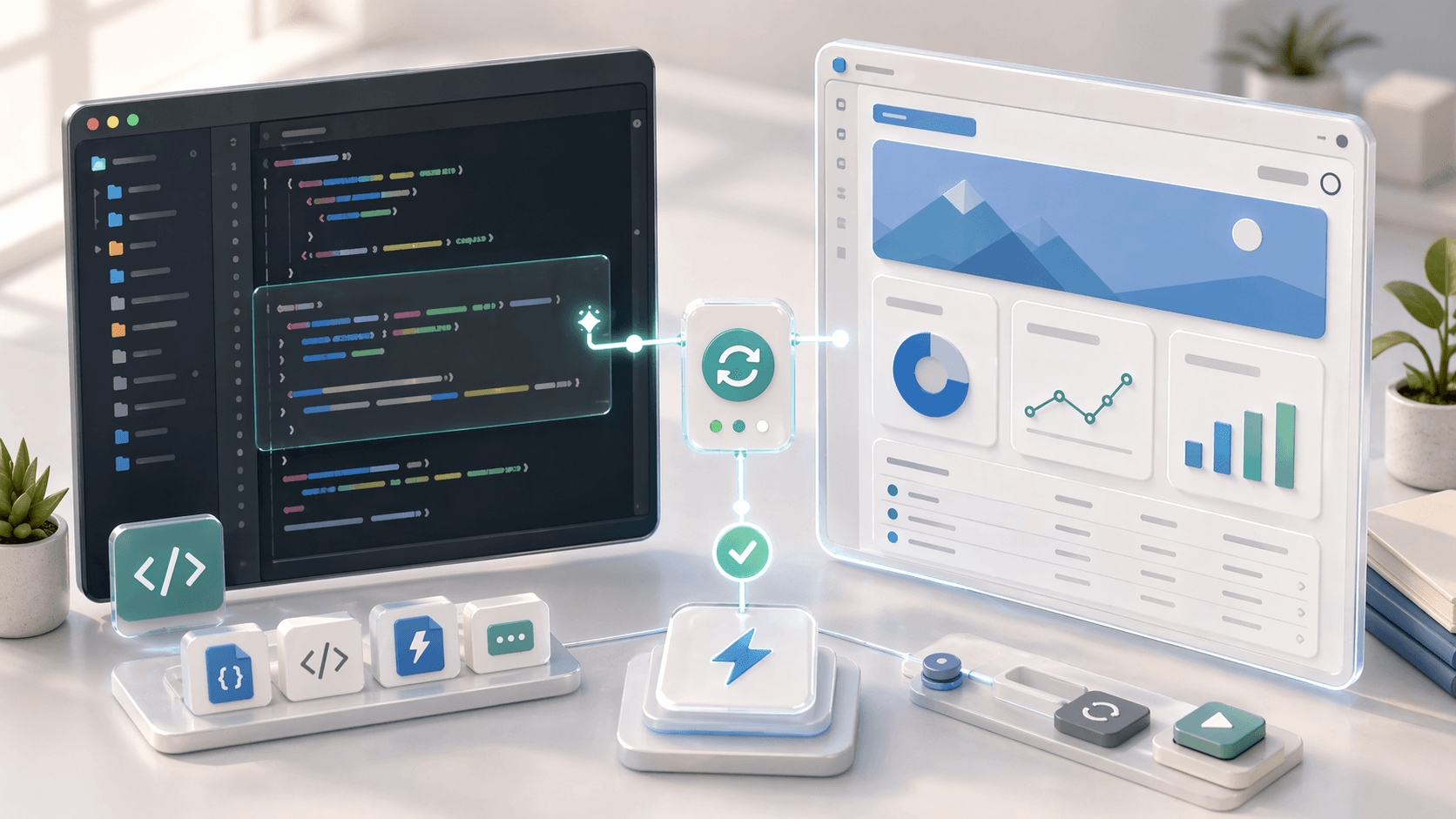
What this gives you
A browser tab that re-renders your LWC every time you save the file, pulling live data from your connected org. No deploy between edits.
Two flavors, both useful
- Local Dev Server runs a small server on your machine that renders LWCs in a browser. It proxies data requests to your authenticated org. Good when you're working on standalone components and want a browser tab you can reload.
- Live Preview (sometimes called Lightning Web Runtime preview) renders the component inside a simulated Lightning page, so you can see it in context. Good for components that need the App Page chrome around them.
Both live in the Salesforce Extension Pack (Expanded). If you haven't installed that, do it before continuing. See Environment Setup.
Starting the Local Dev Server
Confirm the plugin is installed
sf pluginsYou should see @salesforce/plugin-lightning-dev in the list. If not:
sf plugins install @salesforce/plugin-lightning-devAuthorize the org you want to render against
Local Dev needs a live org for data. A scratch org is ideal for this.
sf org login web --alias demo
sf config set target-org=demo
Start the dev server
sf lightning dev app --target-org demoThe CLI prints a URL (typically https://localhost:8081). Open it in a browser, accept the self-signed cert the first time, and you'll see a picker listing the Lightning apps in the org.
Pick an app or a component
Select an app to see the full page. Or run the component-specific command to render just one LWC:
sf lightning dev component --name myFirstLwc --target-org demoEdit and save
Make a change to myFirstLwc.html or myFirstLwc.js. Save the file. The browser reloads with the change without a deploy.
Local Dev is not a full org simulator
Some features don't work locally, including server-side rendering, certain Aura-wrapped experiences, and components that rely on Experience Cloud. For those, fall back to a real deploy.
Using it with Cursor's agent
A workflow that makes the loop even tighter:
@myFirstLwc.html @myFirstLwc.js @myFirstLwc.css

I'm running `sf lightning dev app` against demo. Tighten the layout so
the header sits flush with the card edge, use SLDS 2 spacing tokens,
and make the button a `brand` variant. Don't change the JS.
The agent edits the files. You save. The browser reloads. You iterate without leaving Cursor.
Where Live Preview fits in
Live Preview, launched from the command palette via SFDX: Preview Component Locally (or a similar command depending on your Extension Pack version), renders the component inside a browser tab styled like a Lightning page. Great for:
- Record pages where the component relies on
@api recordIdcontext. - Components that layer in SLDS 2 design tokens and need the Lightning wrapper for correct resolution.
- Quickly showing a customer what a component looks like in-context before deploying.
For heavier component-in-app work, the Local Dev Server app view covers more ground.
Common issues
"The browser can't reach localhost:8081"
Check that another process isn't already bound to the port:
lsof -iTCP:8081 -sTCP:LISTENKill the offending process or start on a different port:
sf lightning dev app --port 8443 --target-org demo"The component renders but my wire method returns no data"
Local Dev proxies data through the authenticated org. If the user you're logged in as can't see the records, neither can Local Dev.
Check:
sf org display --target-org democonfirms which user is authenticated.- That user has access to the object, the record type, and the specific records.
- Your
@wireadapter is passing the expected parameters.
"The component renders but looks unstyled"
SLDS stylesheets load from the org. If the component renders plain HTML, Local Dev probably failed to proxy the SLDS assets. Reload the page, and if that doesn't fix it, restart the dev server.
"Changes don't reload"
Live reload watches file changes in your force-app directory. If the watcher misses events, check that the project lives on a local drive (not a network share or cloud-synced folder like OneDrive) and restart the dev server.
When to deploy anyway
Local Dev doesn't replace deploys. Deploy when:
- You're done iterating and want the change in the real app.
- A customer is about to look at the org.
- The component depends on something Local Dev doesn't simulate (Experience Cloud, Communities, certain flow-based contexts).
- You want to run Apex tests that reference the new component.
A reasonable rhythm for demo prep: Local Dev while you're fiddling with the layout, then a single deploy when it's good, then the demo.
What to do next
- Build your first LWC end to end in Your First Project.
- When the LWC hits Apex, pair this with Running & Writing Apex Tests.
- Troubleshoot broken wire data through Debugging Apex in Cursor.