
macOS Environment Setup
Install all necessary tools for Salesforce development with Cursor on macOS
This guide walks you through installing the tools for Salesforce development on macOS. If you're on Windows, start with What If I Use Windows? and come back here for the per-tool details.
Time Required
The complete setup takes about 15 to 20 minutes, depending on your internet connection.
Not comfortable with terminal commands? Let the Agent do it.
You can let Cursor's Agent run this whole setup for you. Open Cursor, open Chat (Cmd+L), switch to Agent mode, and paste:
"Set up my Mac for Salesforce development. Install Homebrew, JDK 21, Git, Node.js, and the Salesforce CLI with the Agentforce plugin. Stop and ask me before anything that needs my password or touches a Salesforce org."
The Agent will walk through the steps below, running each command with your approval. Read along so you know what's happening.
Installation Steps
Install Xcode (macOS)
Xcode is required before installing Homebrew, as it provides essential development tools.
- Open the App Store, search for Xcode, and click Get to install (this can take 30+ minutes).
- After installation, open Terminal and accept the license:
sudo xcodebuild -license accept- Install Command Line Tools:
xcode-select --installInstall Homebrew
Homebrew is a package manager for macOS that makes it easy to install developer tools.
- Open the Terminal app on your Mac. You can find it in
Applications/Utilities/or by searching for it in Spotlight. - Copy and paste the following command into your terminal and press Enter:
/bin/bash -c "$(curl -fsSL https://raw.githubusercontent.com/Homebrew/install/HEAD/install.sh)"- The script will explain what it's going to do and ask for your password. Enter your Mac's login password (you won't see the characters as you type) and press Enter.
- The installation will take a few minutes. Once it's complete, you'll see a message in your terminal.
Install Java Development Kit (JDK)
Salesforce development tools require the Java Development Kit (JDK). Use the current LTS that Salesforce supports. As of this writing that's JDK 21, but check the Salesforce DX system requirements before installing. JDK 17 is also still widely used if your IT team pins a specific version.
Apple Silicon Required
The following instructions are for Apple Silicon Macs (M1, M2, M3, etc.). If you're on an Intel Mac, the path will be different (/usr/local instead of /opt/homebrew).
- Use Homebrew to install the JDK:
brew install openjdk@21- Add the JDK to your system's path:
echo 'export PATH="/opt/homebrew/opt/openjdk@21/bin:$PATH"' >> ~/.zshrc- Apply the changes (or close and reopen your terminal):
source ~/.zshrc- Verify the installation:
java -versionYou should see output that includes openjdk version 21.
Install Salesforce Extensions in Cursor
Before you start working with Salesforce files, install both Salesforce extension packs in Cursor:
- Click the Extensions button at the top of Cursor. It looks like four boxes, with one box tilted to the right.
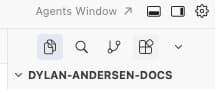
- Search for and install:
- For more details, see the Salesforce Extensions for Visual Studio Code installation guide.
Install Git
Git is the version control system everything else on this page assumes. Install it now. The full playbook lives in Git for Salesforce SEs, but here's the minimum:
brew install git
git config --global user.name "Your Name"
git config --global user.email "your.email@example.com"
git config --global init.defaultBranch main
git --version
If you don't have a GitHub account yet, create one. You'll want it before the first time you need to share a POC.
Install Node.js and npm
Node.js is a JavaScript runtime, and npm is its package manager. Both are essential for working with Lightning Web Components.
- Install Node.js using Homebrew:
brew install node- Verify the installation:
node -v
npm -v
You should see the version numbers for both Node.js and npm.
Install Salesforce CLI
The Salesforce Command Line Interface (CLI) is the primary tool for developing on the Salesforce platform.
- Install the Salesforce CLI using npm:
npm install @salesforce/cli --global- Verify the installation:
sf --versionYou should see the version of the Salesforce CLI printed in your terminal.
Install Agentforce DX
Agentforce DX is a plugin for the Salesforce CLI that allows you to work with AI agents.
- First, update your Salesforce CLI to the latest version:
sf update- The Agentforce DX plugin will be installed automatically the first time you run an
agentcommand. Let's trigger the installation:
sf agent --helpYou will be prompted to install the plugin. Type y and press Enter to confirm.
- Verify the plugin installation:
sf pluginsYou should see @salesforce/plugin-agent listed in your installed plugins.
Verification
If all of these commands run without errors and show you the version numbers or help text, then your development environment is ready!
Environment ready
Your Salesforce development environment is set up. Next, connect Cursor to your org with MCP Setup.
Verify with one command
Paste this into your terminal. If everything prints a version, you're ready:
sf --version && node -v && git --version && java -versionTroubleshooting
If Homebrew installation fails, make sure:
- You're running macOS 10.13 or higher
- You have administrative privileges on your Mac
- Your internet connection is stable
Try running the installation command again, or visit the Homebrew documentation for more help.
If java -version doesn't work after installation:
- Make sure you ran the
source ~/.zshrccommand - Try closing and reopening your terminal
- Verify the PATH was added correctly by running:
echo $PATH
If you get permission errors during npm installation:
- Never use
sudowith npm global installs - Consider using nvm (Node Version Manager) instead
- Make sure your user has write permissions to
/usr/local
Next Steps
- Connect Cursor to your org with MCP Setup.
- Learn the Cursor UX in Cursor Fundamentals.
- Scaffold your first project in Your First Project.