
MCP Setup
Connect Cursor directly to your Salesforce orgs for AI-powered development
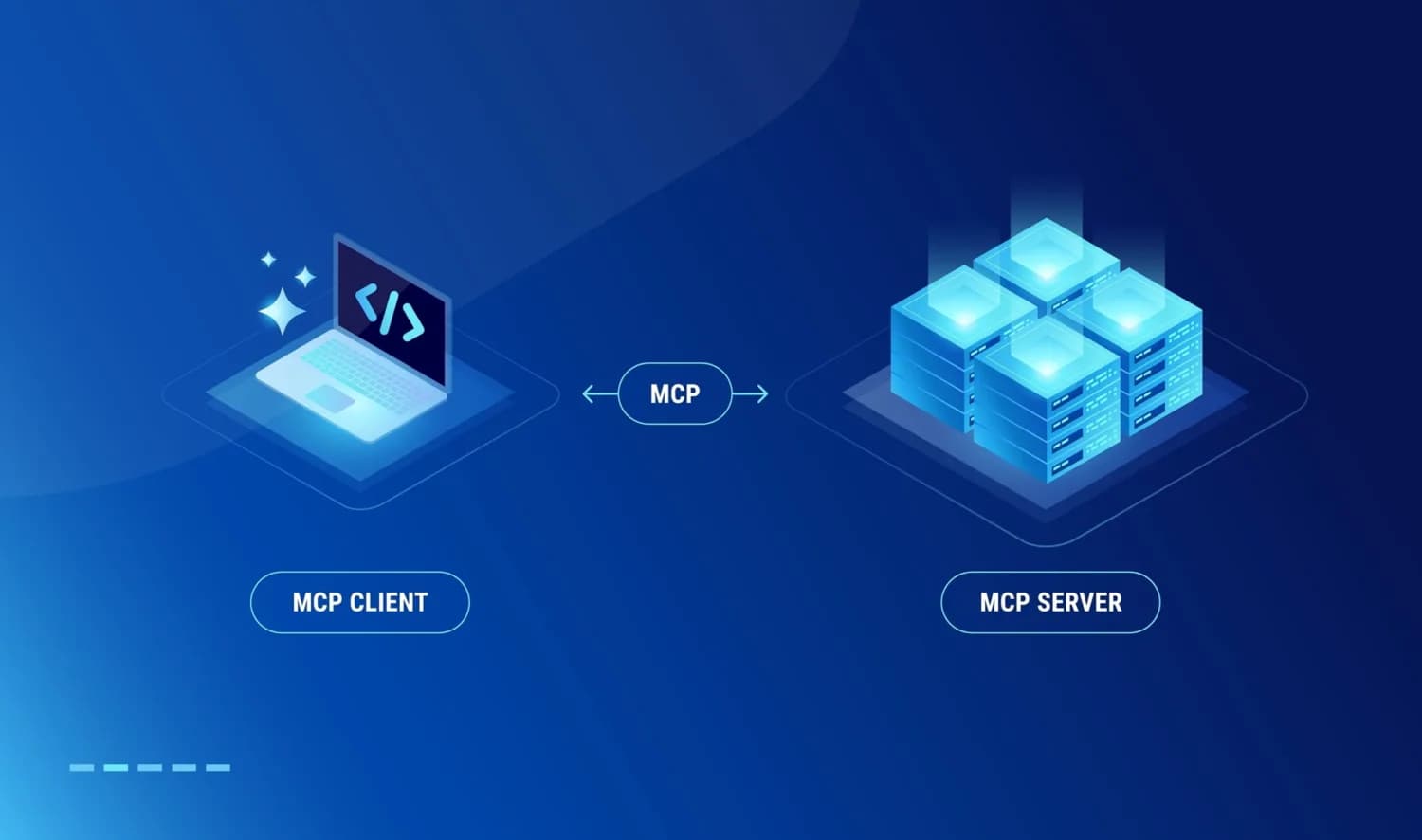
The Model Context Protocol (MCP) creates a direct bridge between Cursor's built-in AI agent and your Salesforce orgs. Once set up, you can chat with Cursor's AI using natural language, and it will execute Salesforce commands directly-querying data, deploying components, and managing your orgs without you needing to type CLI commands.
What You'll Be Able to Do
Chat with Cursor's AI agent using plain English like "show me all open opportunities" or "deploy my latest component changes" and watch it execute those commands against your Salesforce org in real-time.
Don't want to edit config files? Let the Agent do it.
Setting up an MCP involves editing a JSON file. If you'd rather skip it, open Cursor's Chat (Cmd+L) in Agent mode and try:
"Install the Salesforce MCP in Cursor and point it at my default Salesforce org."
The Agent can edit your ~/.cursor/mcp.json for you and restart Cursor. The manual steps below exist so you can customize the config and understand what's wired up.
What You Need First
Before starting, make sure you have:
- Cursor installed on your machine
- Salesforce CLI installed (covered in macOS Environment Setup)
- At least one authenticated org (you can check by running
sf org listin your terminal)
Simple Setup (5 Minutes)
Quick Install (Recommended)
Click this button to automatically add the Salesforce MCP server to Cursor:

This will configure Cursor to:
- Use
npxto automatically download and run the latest Salesforce MCP server - Connect to your default Salesforce org (
DEFAULT_TARGET_ORG) - Stay up-to-date with the latest version (
@latest)
Prefer Manual Setup?
If you need to customize your configuration or the quick install doesn't work, see the Manual Configuration section below.
Restart Cursor
Close and reopen Cursor completely. This loads the new MCP configuration.
Quick Check
After restarting, you can verify the MCP server is loaded by checking the MCP settings in Cursor's preferences.
Add a rule so Cursor uses the MCP automatically
Without a rule, you have to say "use the Salesforce MCP" in every prompt. With one, Cursor picks the MCP on its own.
Create .cursor/rules/salesforce-mcp.mdc in your project with:
---
description: Always prefer the Salesforce MCP for org operations
alwaysApply: true
---

When the user asks about orgs, metadata, queries, deploys, or users:

- Use the Salesforce MCP first. Only fall back to `sf` CLI text if the
  MCP cannot handle the request or is unavailable.
- Before deploying, list what would change and confirm the target org
  alias in chat.
Why this shape
.cursor/rules/*.mdc is the current project-rule format. It replaces the older single-file .cursorrules pattern. See Rules & AGENTS.md for the full playbook on project rules, global rules, and AGENTS.md.
Test It Out
Open Cursor's AI chat panel (click the chat icon in the sidebar or press Cmd/Ctrl + L).
Try These Examples:
list all my connected orgsshow me my default orgrun this query: SELECT Id, Name FROM Account LIMIT 5It's Working!
If you see results in Cursor's chat, you're all set! Cursor is automatically using the MCP to execute commands against your Salesforce org.
Manual Configuration (Optional)
If you prefer to manually configure the MCP server or need to customize the setup, follow these steps:
Open Cursor's MCP Configuration
In Cursor, open the command palette (Cmd/Ctrl + Shift + P) and search for "Cursor: Configure MCP Servers (.mcp.json)".
This opens the configuration file that tells Cursor's AI agent which external tools it can connect to.
What is .mcp.json?
This file lives in your Cursor settings and defines which MCP servers Cursor's AI agent can access. Think of it as giving Cursor's AI permission to talk to your Salesforce orgs.
Add the Salesforce MCP Configuration
Copy this configuration into your .mcp.json file:
{
  "mcpServers": {
    "Salesforce DX": {
      "command": "npx",
      "args": ["-y", "@salesforce/mcp@latest",
               "--orgs", "DEFAULT_TARGET_ORG",
               "--toolsets", "orgs,metadata,data,users",
               "--tools", "run_apex_test",
               "--allow-non-ga-tools" ]
    }
  }
}
Already Have Other Servers?
If you already have other MCP servers configured, just add the "salesforce": { ... } section inside your existing mcpServers object.
Restart Cursor
Close and reopen Cursor completely to load the new configuration.
Using the MCP
Open Cursor's AI Chat
- Chat Panel: Click the chat icon in the left sidebar
- Keyboard: Cmd/L (Mac) or Ctrl/L (Windows)
- Inline: Cmd/K (Mac) or Ctrl/K (Windows)
Set up automatic MCP usage
Add a project rule at .cursor/rules/salesforce-mcp.mdc (see Rules & AGENTS.md) so Cursor uses the MCP for Salesforce operations without being asked.
With the rule in place
Ask "show me all accounts" and Cursor picks the Salesforce MCP on its own. No need to mention it every time.
Real-World Examples
Here are practical ways to use the Salesforce MCP in your daily development workflow. With the project rule in place, you can use simple, natural language:
Query Data
show me all contacts for Acme Corporationfind opportunities that closed this month with amount over $50kget the picklist values for the Stage field on OpportunityDeploy Code
deploy my lwc component to the default orgdeploy everything in the force-app directoryCheck Org Info
list all my connected orgsshow me all custom objects in my orgCreate Test Data
create 10 test accounts with realistic company namesadd 5 opportunities to the account I just createdWithout the rule
If you haven't set up the project rule in .cursor/rules/, prefix these commands with "Use the Salesforce MCP to..." in each message.
Advanced Configuration
Using a Specific Org
By default, the MCP connects to your DEFAULT_TARGET_ORG. To use a specific org instead, replace DEFAULT_TARGET_ORG with your org's alias:
{
  "mcpServers": {
    "Salesforce DX": {
      "command": "npx",
      "args": ["-y", "@salesforce/mcp@latest",
               "--orgs", "my-dev-sandbox",
               "--toolsets", "orgs,metadata,data,users",
               "--tools", "run_apex_test",
               "--allow-non-ga-tools" ]
    }
  }
}
Find Your Org Alias
Run sf org list in your terminal to see all your authenticated orgs and their aliases.
Multiple Org Setup
To work with multiple orgs simultaneously, configure separate MCP servers with different names:
{
  "mcpServers": {
    "Salesforce Dev": {
      "command": "npx",
      "args": ["-y", "@salesforce/mcp@latest",
               "--orgs", "dev-sandbox",
               "--toolsets", "orgs,metadata,data,users",
               "--tools", "run_apex_test",
               "--allow-non-ga-tools" ]
    },
    "Salesforce UAT": {
      "command": "npx",
      "args": ["-y", "@salesforce/mcp@latest",
               "--orgs", "uat-sandbox",
               "--toolsets", "orgs,metadata,data,users",
               "--tools", "run_apex_test",
               "--allow-non-ga-tools" ]
    }
  }
}
Then specify which server to use in your chat: "Use the Salesforce Dev MCP to..." or "Use the Salesforce UAT MCP to..."
Customizing Toolsets
The --toolsets parameter controls which operations are available. You can customize this to limit or expand functionality:
{
  "mcpServers": {
    "Salesforce DX": {
      "command": "npx",
      "args": ["-y", "@salesforce/mcp@latest",
               "--orgs", "DEFAULT_TARGET_ORG",
               "--toolsets", "orgs,data",
               "--allow-non-ga-tools" ]
    }
  }
}
Available toolsets:
orgs- Org management (list, open, create, delete)metadata- Deploy and retrieve metadatadata- Query and manage datausers- User and permission management
Testing Features
The --allow-non-ga-tools flag enables access to experimental features like run_apex_test. Remove it if you only want stable, generally available tools.
Tips for Better Results
Be Specific
The more specific your requests, the better the results. Instead of "show me accounts," try "show me the top 10 accounts by annual revenue with their primary contact."
Automatic MCP usage via a project rule
Instead of typing "Use the Salesforce MCP" into every chat, add a project rule at .cursor/rules/salesforce-mcp.mdc:
---
description: Always prefer the Salesforce MCP for org operations
alwaysApply: true
---

When the user asks about orgs, metadata, queries, deploys, or users:

- Use the Salesforce MCP first. Only fall back to `sf` CLI text if the
  MCP cannot handle the request or is unavailable.
- Before deploying, list what would change and confirm the target org
  alias in chat.
- For multi-org setups, name the MCP explicitly rather than guessing.
Set it once, forget it
With this rule in place, asking "show me all accounts" routes through the Salesforce MCP without another nudge.
For the full breakdown of project rules, global rules, and AGENTS.md, see Rules & AGENTS.md.
Combine with File References
Reference files in your project:
check if @myComponent.js is deployed to my orgAsk Follow-ups
Cursor remembers conversation context:
explain why that SOQL query returned no resultsHandle Complex Workflows
Chain multiple operations in one request:
show me all contacts at Acme Corp, then create a follow-up task for each oneTroubleshooting
MCP Server Not Working
Cursor doesn't respond to MCP commands
If Cursor isn't responding to Salesforce MCP commands, follow these steps:
-
Reset your MCP configuration:
- Open
.mcp.jsonin Cursor (Cmd/Ctrl + Shift + P → "Cursor: Configure MCP Servers") - Delete everything in the file
- Copy the configuration from Manual Configuration and paste it
- Save the file
- Open
-
Update Salesforce CLI:
npm update --global @salesforce/cli -
Restart Cursor completely (quit and reopen, not just close the window)
-
Verify Node.js and npx:
node --version
npx --version
If either command fails, install Node.js (includes npx)
No Orgs Found
MCP can't find your orgs
- Verify orgs are authenticated:
sf org list - Check that org aliases match exactly (case-sensitive)
- Re-authenticate if needed:
sf org login web
Slow Responses
If queries take too long:
- Limit results: "show me 10 records" instead of "show me all records"
- Add filters to narrow data
- Break complex requests into smaller queries
Staying Updated
Auto-updates with @latest
Using @salesforce/mcp@latest in your configuration automatically pulls the newest version. No manual updates needed!
To manually update:
npm install -g @salesforce/mcp@latestCheck official releases for new features.
What's Next?
Now that Cursor is connected to your Salesforce org via MCP, you can:
- Create your first Salesforce project and build your first Lightning Web Component
- Explore the Prompt Library for powerful ways to use Cursor with Salesforce
- Continue to Agentforce DX to learn about building agents from the command line
Pro tip
Keep the chat panel open while you code. With the project rule in place, natural questions like "show me all accounts" or "deploy my changes" route through the MCP automatically.