
Org Browser
Download working Salesforce metadata to provide context and patterns for the Cursor Agent
The Org Browser is one of the most powerful tools for AI-assisted Salesforce development with Cursor. It lets you browse and download working metadata from your Salesforce org directly into your project, providing the Cursor Agent with real-world examples and patterns to learn from.
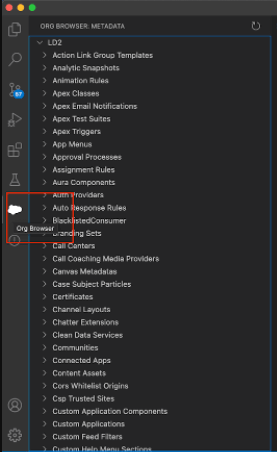
Why This Matters for Cursor
Without working metadata from your org, Cursor (and more importantly, the LLM models powering it) will struggle to understand Salesforce metadata structure and patterns. Downloading real Flow XML files, Apex classes, Lightning Web Components, and other metadata gives Cursor concrete examples to reference when generating new code.
Why Download Metadata for Cursor?
When you ask Cursor to create a new Flow, build a Lightning Web Component, or write an Apex class, the AI needs context. Here's why downloading working metadata is essential:
Pattern Recognition
Cursor learns from real examples. A downloaded Flow XML shows the exact structure, naming conventions, and patterns your org uses.
Metadata Structure
Salesforce metadata has specific XML structures. Without examples, Cursor might generate invalid metadata that won't deploy.
Org-Specific Patterns
Your org might have custom naming conventions, field references, or component patterns. Downloaded metadata captures these.
Working Examples
Real metadata from your org is guaranteed to work. Cursor can use it as a template for generating similar components.
Example Workflow: Creating a New Flow
Here's how downloading metadata helps when creating a new Flow:
- Download an existing Flow from your org using Org Browser
- Open the Flow XML file in Cursor
- Ask Cursor: "Create a new Flow similar to this one, but for case creation instead of account creation"
- Cursor uses the downloaded Flow as a pattern, maintaining your org's structure and conventions
Without the downloaded Flow XML, Cursor would be guessing at the structure, likely creating something that doesn't match your org's patterns or might not even deploy successfully.
Accessing the Org Browser
The Org Browser is part of the Salesforce Extension Pack. To access it:
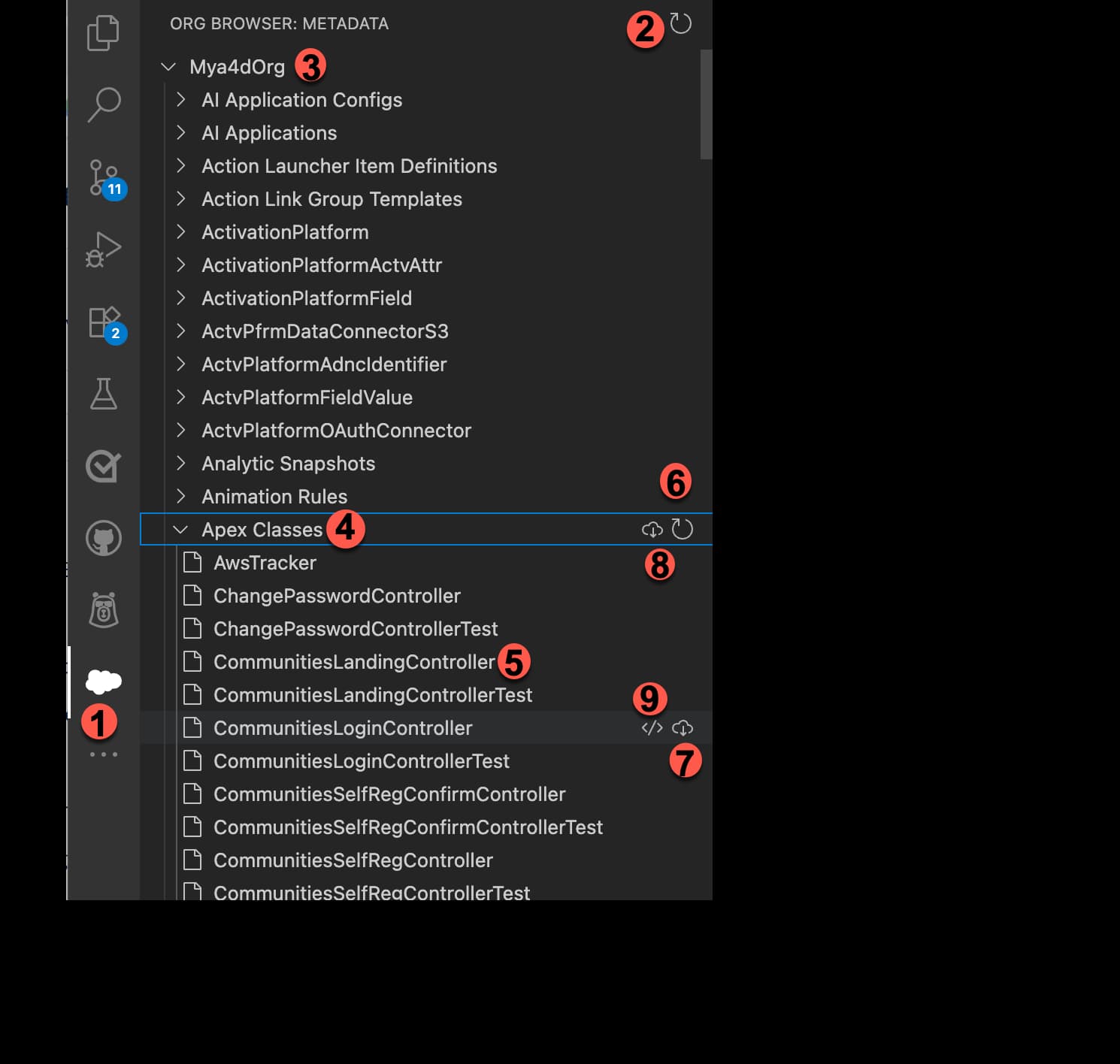
- Click the cloud icon in Cursor's Activity Bar (left sidebar)
- The Org Browser panel opens, showing all metadata types in your default org
Default Org
Make sure you have a default org set. You can set it using the Command Palette: SFDX: Set a Default Org. The Org Browser shows metadata from your default org.
Downloading Metadata for Cursor
Download a Single Component
To download a specific Flow, Apex class, or other component:
- Expand the metadata type (e.g., Flows)
- Find the component you want
- Click the download icon next to the component name
- The component downloads to your
force-appdirectory
Now Feed It to Cursor
Once downloaded, open the file in Cursor and reference it in your chat: "Use this Flow as a pattern to create a new Flow for..." Cursor will understand the structure and generate code that matches your org's patterns.
Download All Components of a Type
To download all components of a metadata type (useful for getting multiple examples):
- Expand the metadata type
- Click the download icon next to the metadata type name
- All components of that type download to your project
Overwrite Prompts
If downloading a component would overwrite an existing file, Cursor will prompt you to choose how to proceed. You can choose to overwrite, skip, or compare differences.
Working with Foldered Metadata
Some metadata types like Reports, Dashboards, Documents, and Email Templates are organized in folders:
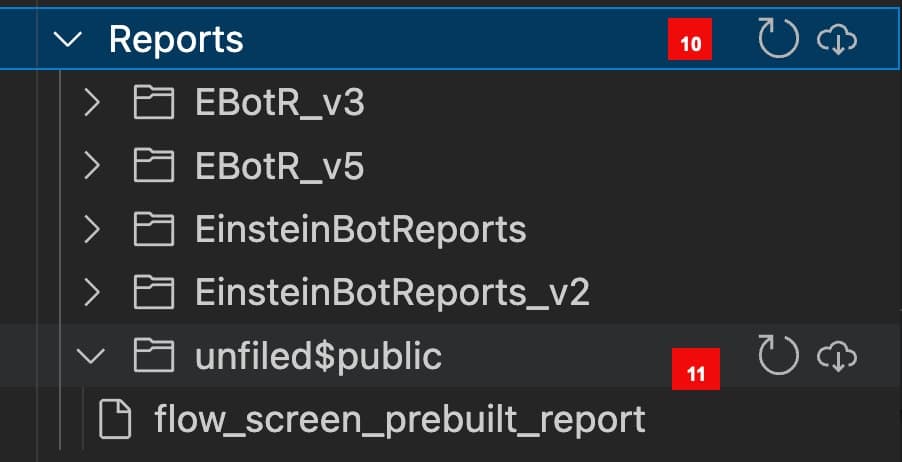
- Expand folders to see components inside
- Download individual components from within folders
- Download all folders by clicking the download icon next to the metadata type
Best Practices for Using Org Browser with Cursor
Download Before Creating
Before asking Cursor to create a new Flow, Component, or Apex class, download a similar one from your org first. This gives Cursor a working pattern to follow.
Reference Downloaded Files
When chatting with Cursor, reference the downloaded file:
Use @existingFlow.flow-meta.xml as a pattern to create a new Flow for
case assignment that includes approval steps
Cursor will read the file and use its structure as a template.
Keep Examples Updated
Periodically refresh and re-download metadata to ensure Cursor has the latest patterns and conventions from your org.
Download Multiple Examples
For complex metadata types, download 2-3 examples showing different patterns. This gives Cursor a better understanding of variations.
Common Use Cases
Creating a New Flow
1. Download an existing Flow from Org Browser
2. Open it in Cursor
3. Ask: "Create a new Flow similar to this one, but for opportunity
   creation with validation rules"
4. Cursor generates a new Flow matching your org's patterns
Building a Lightning Web Component
1. Download a similar LWC from your org
2. Reference it: "Create a new LWC like @existingComponent.js but
   for displaying account details"
3. Cursor uses the downloaded component's structure and patterns
Writing Apex Classes
1. Download an existing Apex class that does something similar
2. Ask Cursor: "Create a new Apex class following the same patterns
   as @existingClass.cls but for processing leads"
3. Cursor maintains your org's coding conventions
Refreshing Metadata
The Org Browser caches metadata locally in the .sfdx directory to minimize API calls. To update the list:
- Refresh all metadata types: Click the refresh icon at the top of the Org Browser
- Refresh a specific type: Click the refresh icon next to a metadata type
- Refresh folders: Click the refresh icon next to a folder
- Refresh components: Click the refresh icon next to a component list
Automatic Refresh
When you download all components of a metadata type, the Org Browser automatically refreshes the component list first to ensure accuracy.
Troubleshooting
- Verify you have a default org set:
SFDX: Set a Default Org - Check that the Salesforce Extension Pack is installed
- Restart Cursor if the cloud icon doesn't appear
- Ensure you're connected to your org:
sf org display - Check your project has a valid
sfdx-project.jsonfile - Verify the component exists in your org (refresh the metadata list)
- Check your
sfdx-project.jsonfor thepackageDirectoriesconfiguration - Default location is
force-app/main/default/ - Components download to the appropriate subdirectory based on metadata type
Next Steps
Now that you understand how to download metadata for Cursor:
- Learn how to use the Prompt Library with downloaded metadata
- Explore advanced Cursor techniques for working with Salesforce
- Set up MCP integration for even more powerful org interactions
Pro Tip
Keep a folder of "reference" metadata in your project - commonly used Flows, Components, and Apex classes. This gives Cursor a library of patterns to reference, making code generation faster and more accurate.