
What If I Use Windows?
The short path to get Cursor, Git, Node, Java, and the Salesforce CLI running on native Windows.
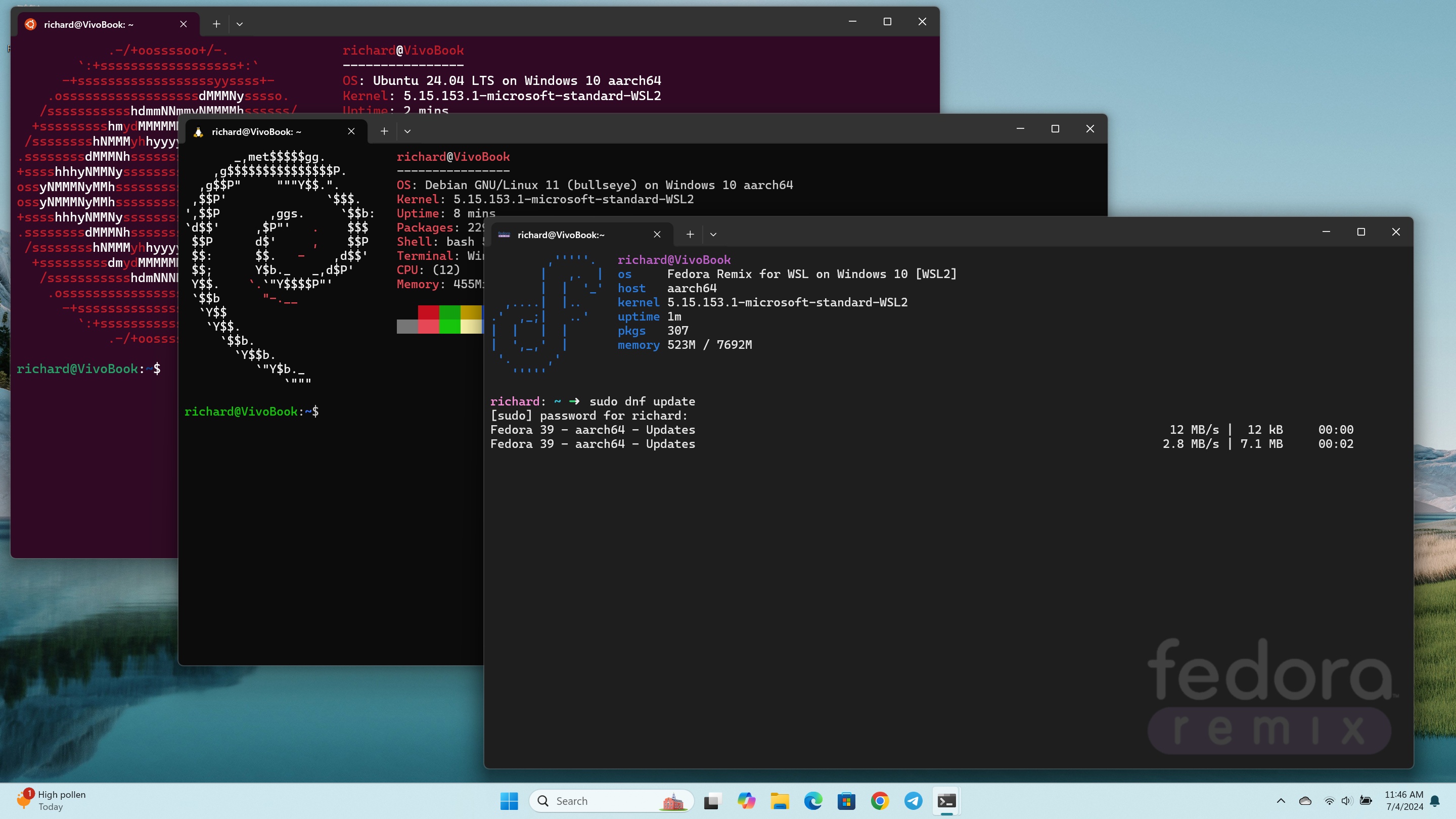
Everything in the rest of this guide works on native Windows. Install four things, use Git Bash as your terminal, and keep going.
Install the toolchain
Git for Windows
Download and run the installer from git-scm.com/download/win. It includes Git Bash, which you'll use as your terminal.
Node.js LTS
Grab the Windows installer from nodejs.org. Accept the defaults.
Temurin JDK 21
Install the .msi from adoptium.net. The installer sets JAVA_HOME for you.
Salesforce CLI and Agentforce DX
Open Git Bash and run:
npm install @salesforce/cli --global
sf --version
sf agent --help
The first sf agent call triggers the Agentforce DX plugin install.
Make Cursor use Git Bash
PowerShell works, but a lot of Salesforce and Node scripts assume a Unix-ish shell. Point Cursor's integrated terminal at Git Bash:
- Open Cursor settings (
Ctrl+,). - Search for
terminal.integrated.defaultProfile.windows. - Set it to
Git Bash.
New terminals inside Cursor now behave like the ones in the rest of this guide.
Common pitfalls
Line endings
Git can silently convert line endings between Windows and Unix checkouts. Run this once:
git config --global core.autocrlf input- Antivirus scanning
node_modules. If installs and builds feel slow, add your projects folder to Windows Defender exclusions (Settings → Virus & Threat Protection → Manage Settings → Add an Exclusion). - Long path errors. Enable long paths in Git:
git config --system core.longpaths true. sfnot found after install. Close and reopen Git Bash so the newPATHis picked up.
What to do next
- Install the MCP: MCP Setup.
- Build your first project: Your First Project.