
Your First Project
Create a Salesforce project, connect to your org, and build your first LWC with Cursor
Now that the tools are installed, let's set up your first Salesforce project. This involves creating a folder on your computer, using Cursor to structure it correctly, and then connecting that folder to your Salesforce org.
Not comfortable with terminal commands? Let the Agent do it.
You can skip straight to the result by asking Cursor's Agent to scaffold the project, authorize your org, and create your first LWC. Open Chat (Cmd+L), switch to Agent mode, and try:
"Create a new Salesforce DX project in this folder, authorize my Salesforce org with the alias
demo, and generate a simple LWC calledmyFirstLwcwith a button that says Hello World."
The Agent runs sf commands with your approval. The manual steps below exist so you understand what's happening.
Project Setup Workflow
Create a Project Folder
First, you need a dedicated folder for your project on your computer.
- Using Finder: Open Finder, navigate to where you want to store your projects (e.g., your
Documentsfolder), and create a new folder. - Naming Convention: Give it a descriptive name. Use lowercase letters and hyphens instead of spaces. For example:
my-awesome-projectordreamhouse-lwc.
Open the Project in Cursor
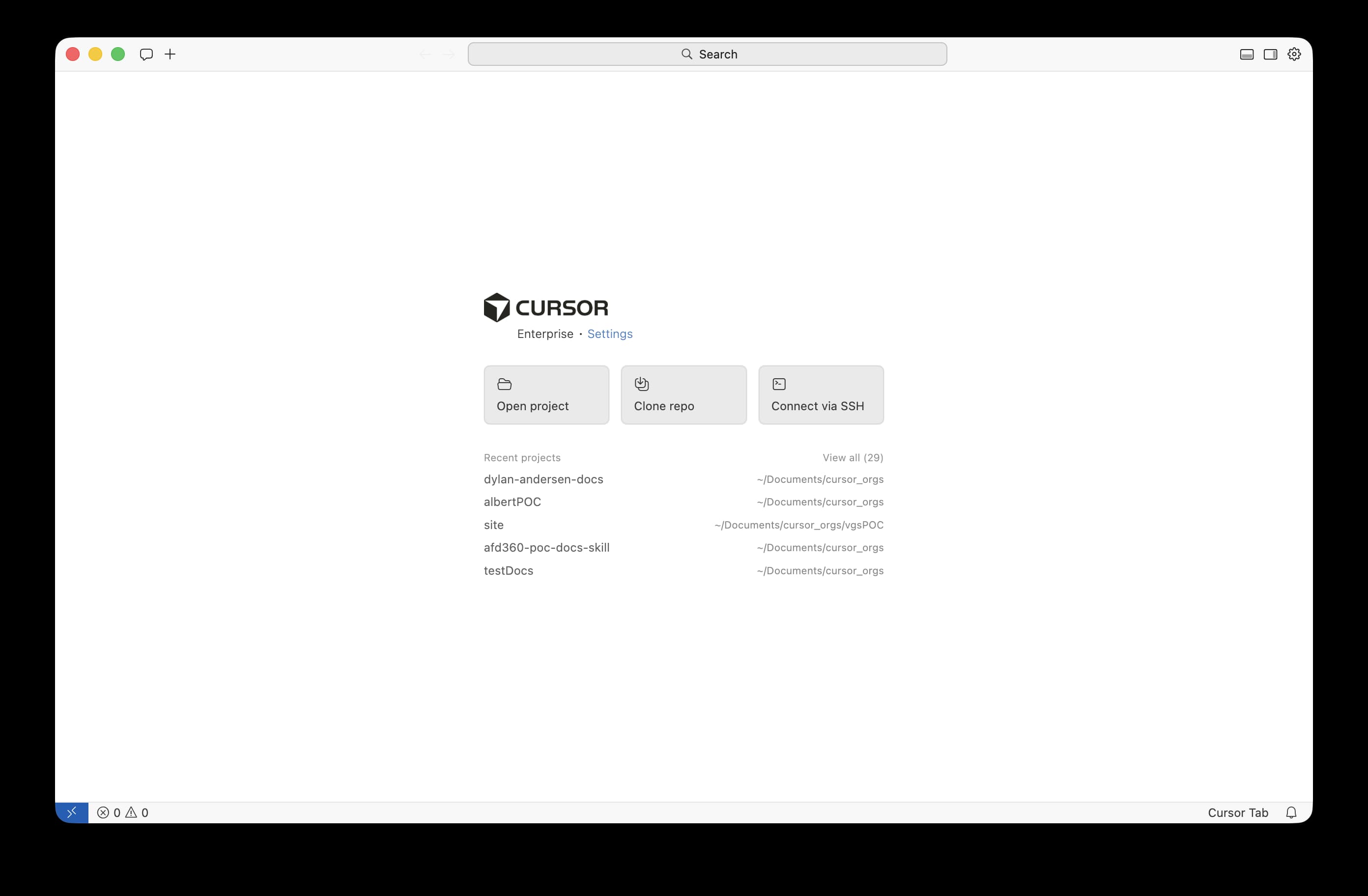
Now, open your new folder in Cursor. This makes it the "root" of your project.
- Launch the Cursor application.
- Go to the menu bar and select File > Open Folder....
- Navigate to and select the folder you just created.
Install Salesforce Extension Pack
Before creating a Salesforce project, you'll need to install the Salesforce Extension Pack in Cursor. Cursor supports VS Code extensions, so you can use the same Salesforce extensions.
- Open the Extensions view in Cursor (click the Extensions icon in the left sidebar, or press
Cmd+Shift+X). - Search for "Salesforce Extension Pack" in the marketplace.
- Install the extension published by Salesforce (it includes all the necessary Salesforce development tools).
Alternative: Terminal Method
If you prefer not to use the Command Palette, you can create projects using terminal commands. See the "Using Terminal" tab in the "Create Your First LWC" section below for terminal-based alternatives.
Install Recommended Extensions
For the best Salesforce development experience, install these additional recommended extensions:
- Salesforce Extension Pack (Expanded) - Includes many community-built tools to boost productivity
- Salesforce Live Preview - Allows you to preview LWCs locally in Cursor without deploying to your org
- Apex Log Analyzer - Simplifies analysis of Salesforce debug logs for performance evaluation
- Prettier - Ensures consistent code formatting across JavaScript and CSS files
- XML Tools - Provides language support for XML documents like
-meta.xmlandpackage.xmlfiles
Install each extension by searching for its name in the Extensions marketplace (press Cmd+Shift+X).
Can't find the extension you're looking for?
If you struggle to find the extension, sometimes it can be more beneficial to search by the extension Publisher. For example, if you are looking for the Salesforce Extension Pack (Expanded), you can search for "Salesforce" and then select the "Salesforce" publisher.
Still can't find it? Try searching the Extension Name on Google and copying the URL into the Extensions marketplace.
Create a Salesforce Project using the Command Palette
Your folder is still empty. Let's use Cursor's Command Palette to create the standard project structure.
- Open the Command Palette by pressing
Cmd+Shift+P(orCtrl+Shift+Pon Windows). - A search bar will appear. Type
SFDX: Create Projectand select it from the list. - Choose the
Standardproject template and press Enter. - Enter a name for your project (e.g.,
my-awesome-project) and press Enter. - Cursor will create the necessary files and folders, including the important
force-appdirectory where your code will live.
Connect your project to an org
Two paths, depending on which kind of org you're targeting.
Scratch orgs are short-lived, source-tracked, and the right default for repeatable POC work. They require a Dev Hub (any production org or a Developer Edition where Dev Hub has been enabled).
sf org create scratch \
  --definition-file config/project-scratch-def.json \
  --alias demo \
  --duration-days 30 \
  --set-default
The project template already includes a config/project-scratch-def.json. Edit it before you create the org if you need Communities, Multi-Currency, or other features.
Why local development is worth it
Working in Cursor beats the in-browser Developer Console because your code lives on your machine, versioned in Git, and your AI tools can see all of it at once. The CLI handles the round trip to the org.
Quick orientation: sfdx-project.json and .forceignore
Two files at the root of your new project are worth knowing about before you go further.
sfdx-project.jsontells the CLI where your source lives (packageDirectories), what API version to use (sourceApiVersion), and a few other project-wide settings..forceignoreis a gitignore-style file that tells the CLI which metadata to skip on deploys and retrieves. Especially important when you point this project at a real customer sandbox.
The full mental model lives in Source Tracking & .forceignore. Read that page before the first time you retrieve from a customer org.
Create Your First LWC
Your project is now set up! It's time to create your first Lightning Web Component. For beginners, we highly recommend starting with the AI Chat.
The Easy Way: Ask the AI to Create the Component
One of the things Cursor is good at: reading your project structure and creating files in the right places without you specifying paths.
Use the AI Chat: In Cursor's chat panel, simply ask it to create the component for you. Here's a great starting prompt:
"Create a new Lightning Web Component named myFirstLwc inside the force-app/main/default/lwc directory. The component should have a button. When the button is clicked, it should display the message 'Hello, World!' below it."
Cursor will not only write the HTML, JavaScript, and XML files for you but also create them in the correct folder. You'll see the new myFirstLwc folder appear in the file explorer on the left.
For more advanced users who are comfortable with the command line, you can generate the component's boilerplate files using the Salesforce CLI.
- Open the Terminal in Cursor: Terminal > New Terminal
- Run this command:
sf lightning generate component --type lwc --name myFirstLwc --output-dir force-app/main/default/lwcThis command creates the necessary files, but they will be empty. You would then need to write the code for the HTML and JavaScript files yourself (or ask the AI to fill them in).
You can also use the Command Palette to create components:
- Press
Cmd+Shift+P(orCtrl+Shift+P) - Type
SFDX: Create Lightning Web Component - Follow the prompts to name your component and select the output directory
This creates the boilerplate files which you can then edit.
Which method should you use?
- Start with the AI Chat. It's faster and lets you focus on what you want to build rather than the specific commands.
- Use the Terminal for precision: As you become more experienced, you might prefer the terminal for its speed and scripting capabilities.
Deploy your work
Now that your component exists, push it to your Salesforce org.
Deploy to your default org
sf project deploy startDeploy to a specific org
Use --target-org when you have multiple orgs authorized:
sf project deploy start --target-org demoPreview before you deploy
For any customer-facing work, run a dry run first. The server validates everything but doesn't commit:
sf project deploy start --dry-run --target-org acme-uatDeploy specific files
Scope the deploy to one directory when you only want to push a subset:
sf project deploy start --source-dir force-app/main/default/lwc/myFirstLwcRetrieve to verify
Pull the metadata back down and diff against local. If git diff is empty, the server matches your source:
sf project retrieve start --source-dir force-app/main/default/lwc/myFirstLwc
git diff
Congratulations!
You've now successfully set up your environment, created a project, written code, and deployed it to Salesforce. Happy coding!
Example: Complete LWC Code
Here's what a simple "Hello World" LWC looks like:
myFirstLwc.html
<template>
    <lightning-card title="My First LWC" icon-name="custom:custom14">
        <div class="slds-m-around_medium">
            <lightning-button
                label="Click Me"
                onclick={handleClick}>
            </lightning-button>
            <template if:true={showMessage}>
                <div class="slds-m-top_medium">
                    <p>Hello, World!</p>
                </div>
            </template>
        </div>
    </lightning-card>
</template>
myFirstLwc.js
import { LightningElement } from 'lwc';

export default class MyFirstLwc extends LightningElement {
    showMessage = false;

    handleClick() {
        this.showMessage = true;
    }
}
myFirstLwc.js-meta.xml
<?xml version="1.0" encoding="UTF-8"?>
<LightningComponentBundle xmlns="http://soap.sforce.com/2006/04/metadata">
    <apiVersion>60.0</apiVersion>
    <isExposed>true</isExposed>
    <targets>
        <target>lightning__AppPage</target>
        <target>lightning__RecordPage</target>
        <target>lightning__HomePage</target>
    </targets>
</LightningComponentBundle>
Next Steps
- Learn the Cursor UX in Cursor Fundamentals.
- Connect Cursor to your org with MCP Setup.
- Understand deploys, retrieves, and
.forceignorein Source Tracking &.forceignore. - Preview your LWC without deploys in LWC Local Dev & Live Preview.
- Build an Agentforce agent in Agentforce DX.